Your calendar in Teams is connected to your Outlook calendar. In other words, when you schedule a meeting in Outlook, it'll show up in Teams and vice versa.
Note: Every meeting scheduled in Teams is automatically made into a virtual online meeting with a link to join.
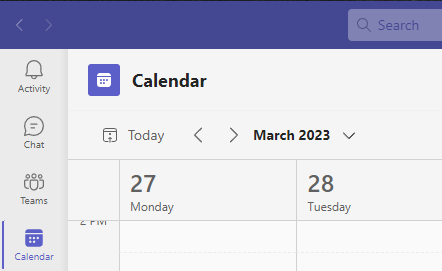
- In the Teams application, select the Calendar icon on the left side.
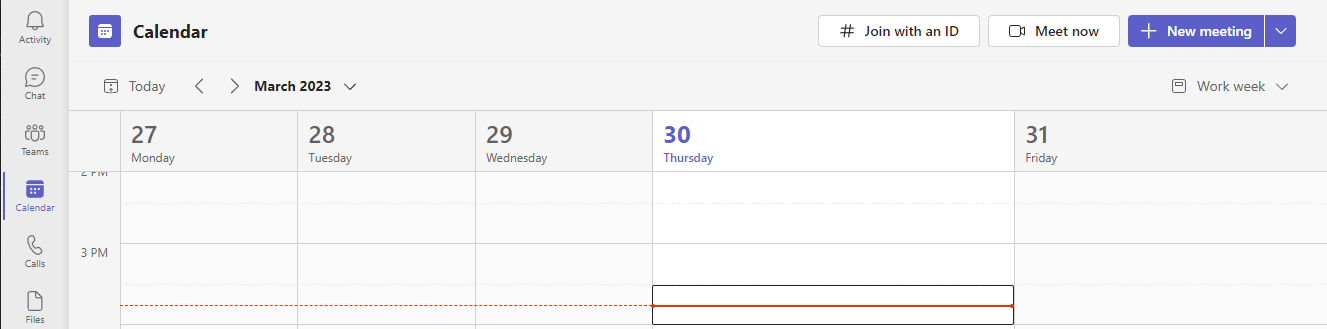
- Then select " + New Meeting"
- Fill in the appropriate information like title, date, time, location, details, etc.
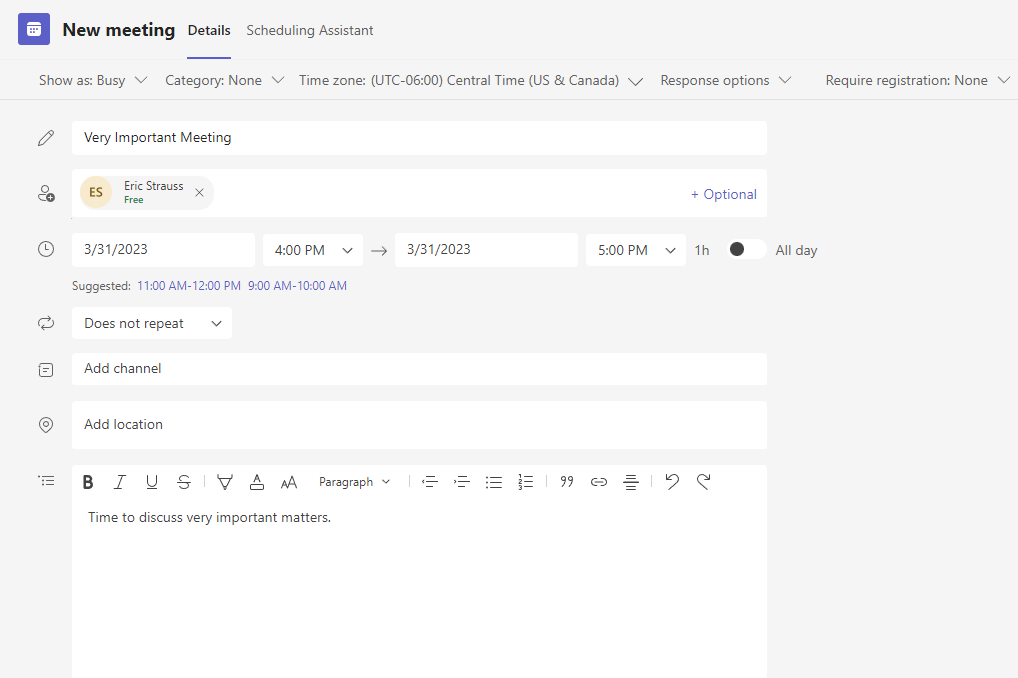
- Once all the information is submitted, select Send.
- A notification will be sent to all of your attendees, and the event will be added to your calendar.
Alternatively, you can schedule a meeting in Outlook for Teams by pressing the New Teams Meeting at the top of the screen, while on the calendar in Outlook.

For more information on how to schedule a meeting in teams, visit Microsoft Support.
Was this article helpful?
That’s Great!
Thank you for your feedback
Sorry! We couldn't be helpful
Thank you for your feedback
Feedback sent
We appreciate your effort and will try to fix the article