Note: The layouts shown below may be slightly different on newer phones, but the steps are the same.
1. Press the “OK” button on the phone to find the IP address.
2. Enter the IP address into your web browser address bar, then hit ‘Enter’ as you would to navigate to a normal URL.
3. Enter the username (user) and password (user) on the login page and hit “Confirm.”
4. Select "DSSKey" Tab along the left menu, then "Line Key" to program keys.
- For the T46U phones, use Line Key 1-9, Line Key 10-18, and Line Key 19-27 accordingly.
- For the T43U phones, use Line Key 1-5, Line Key 6-10, and Line Key 11-15 accordingly.
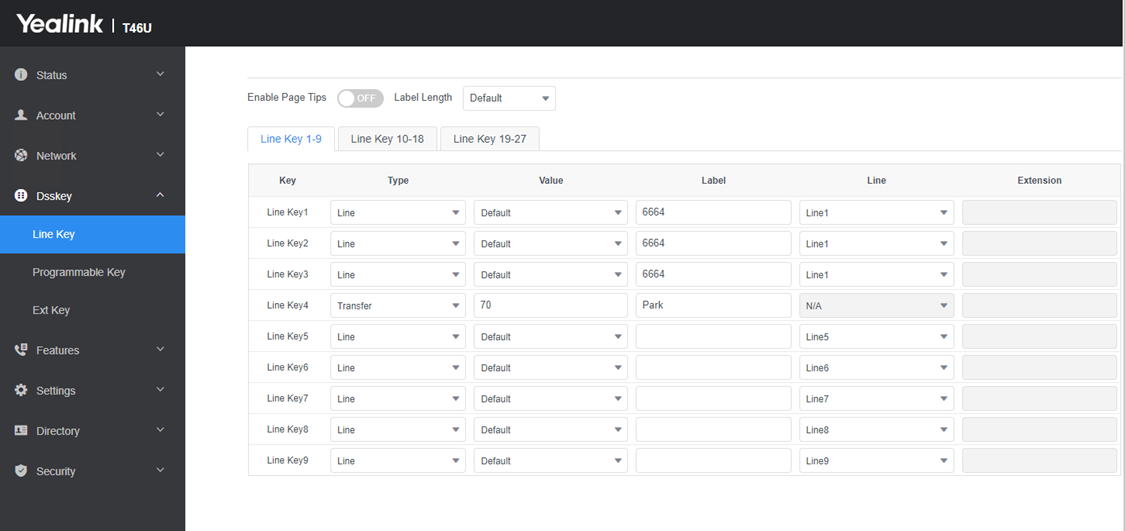
Programming Buttons
- When programming local extension buttons - select ‘BLF’ (Busy Lamp Field) as the Key Type. Enter the extension number in the Key Value and the extension name in the Key Label. This will light the key, providing an indication if the persons on a call (red), or if not (green). Make sure there are no spaces in the Key Value field; otherwise, the BLF button WILL NOT work.
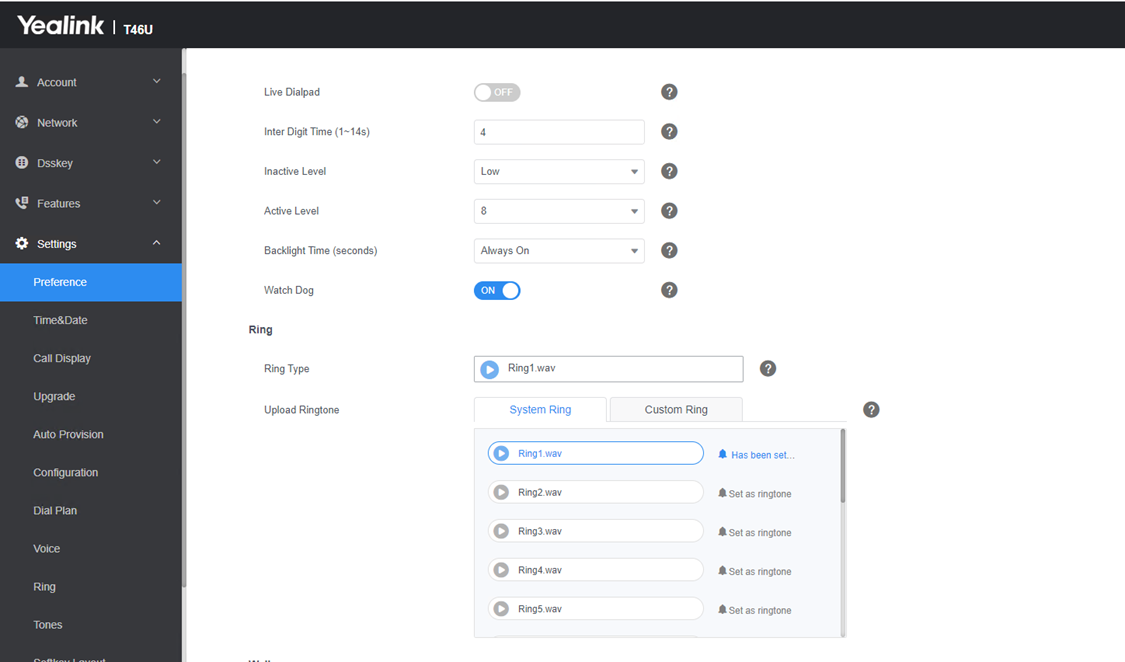
To upload a unique ringtone, select Settings and either select one of the available ringtones or upload a ‘.wav’ file off your PC.
- Choose File, then Upload and Confirm.
- Also, you can change the Wallpaper picture (T46).
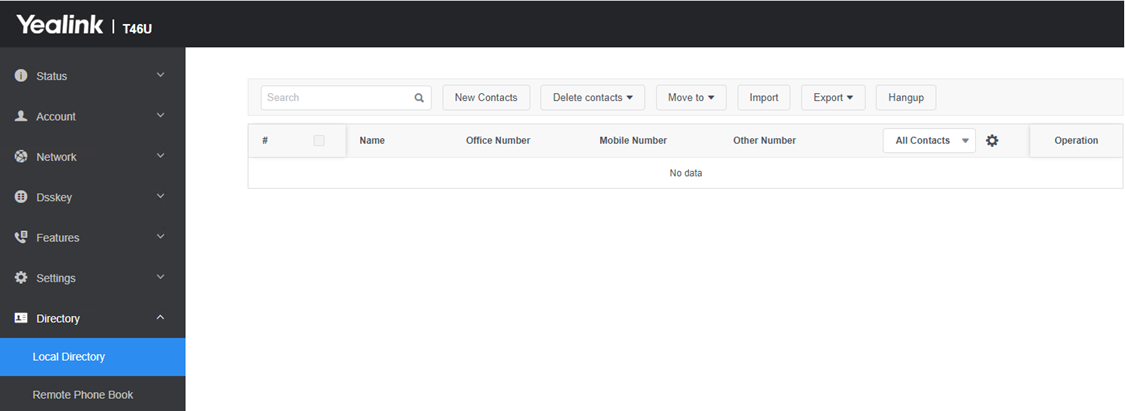
To customize your directory, select the Directory Tab.
- You can enter your directory contacts here which is easier and faster than through the phone keypad.
- If you prefer to upload an XML file, we recommend you request support from your IT department.
Was this article helpful?
That’s Great!
Thank you for your feedback
Sorry! We couldn't be helpful
Thank you for your feedback
Feedback sent
We appreciate your effort and will try to fix the article